
Hide the Wysh icon
Control where the Wysh icon appears
You can hide the Wysh wishlist icon in specific areas of your storefront from your Shopify theme editor. These options are available in the App embeds settings for Wysh, under Wishlist visibility.
These settings let you turn off Wysh in specific locations without editing your theme code.
Open the Wishlist visibility settings
In Shopify admin, go to Online Store.
On your live theme, click Edit Theme.
In the theme editor, click the App embeds icon in the top-left corner. It is the fourth icon across.
Find Wysh in the App embeds panel and click the down arrow to expand its settings.
Scroll to the section called Wishlist visibility. This section contains the toggle options for hiding the Wysh icon in different parts of your storefront.
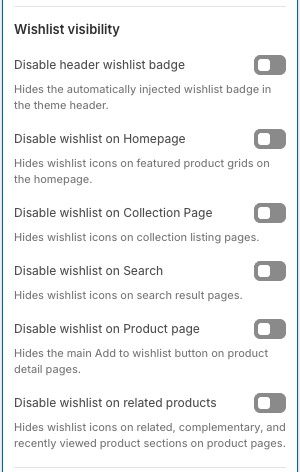
Available visibility options
In Wishlist visibility, enable the options you want to use:
Disable header wishlist badge — Hides the automatically injected wishlist badge in the theme header.
Disable wishlist on Homepage — Hides wishlist icons on featured product grids on the homepage.
Disable wishlist on Collection Page — Hides wishlist icons on collection listing pages.
Disable wishlist on Search — Hides wishlist icons on search result pages.
Disable wishlist on Product page — Hides the main Add to wishlist button on product detail pages.
Disable wishlist on related products — Hides wishlist icons on related, complementary, and recently viewed product sections on product pages.
Save your changes
After selecting the options you want, click Save in the theme editor to make the changes live on your theme.
If you only want to remove Wysh from certain parts of the storefront, leave the other visibility options turned off so customers can still use wishlist features elsewhere.
What each setting affects
This controls the wishlist badge that Wysh injects into the theme header. Turn it off if you do not want customers to open My Wishlist from the header area.
These settings remove wishlist icons from product cards shown on the homepage and collection pages. This is useful if you want a cleaner browsing experience while keeping wishlist actions on product pages.
This removes wishlist icons from products shown on storefront search results pages.
This hides the main Add to wishlist button that appears alongside the main purchase actions on the product page.
This removes wishlist icons from related, complementary, and recently viewed product sections that appear below or around the main product content.
Notes
These settings affect the theme where you make the change in Shopify's theme editor. If you are working on an unpublished theme, the changes will apply there until that theme is published.
If your store uses manual icon placement for unsupported or partially supported themes, theme code and visibility settings may both affect where wishlist buttons appear.