
Use Wysh with Sidekick
Ask Sidekick about your Wysh data
Wysh now works with Sidekick, Shopify’s built-in AI assistant. You can use it to ask questions about your Wysh data in plain language instead of manually checking the Dashboard or the Wishlists page.
This makes it faster to look up customer wishlists, review wishlist performance, spot product demand, and understand recent wishlist activity across both your online store and Shopify POS.
This feature works in all supported languages.
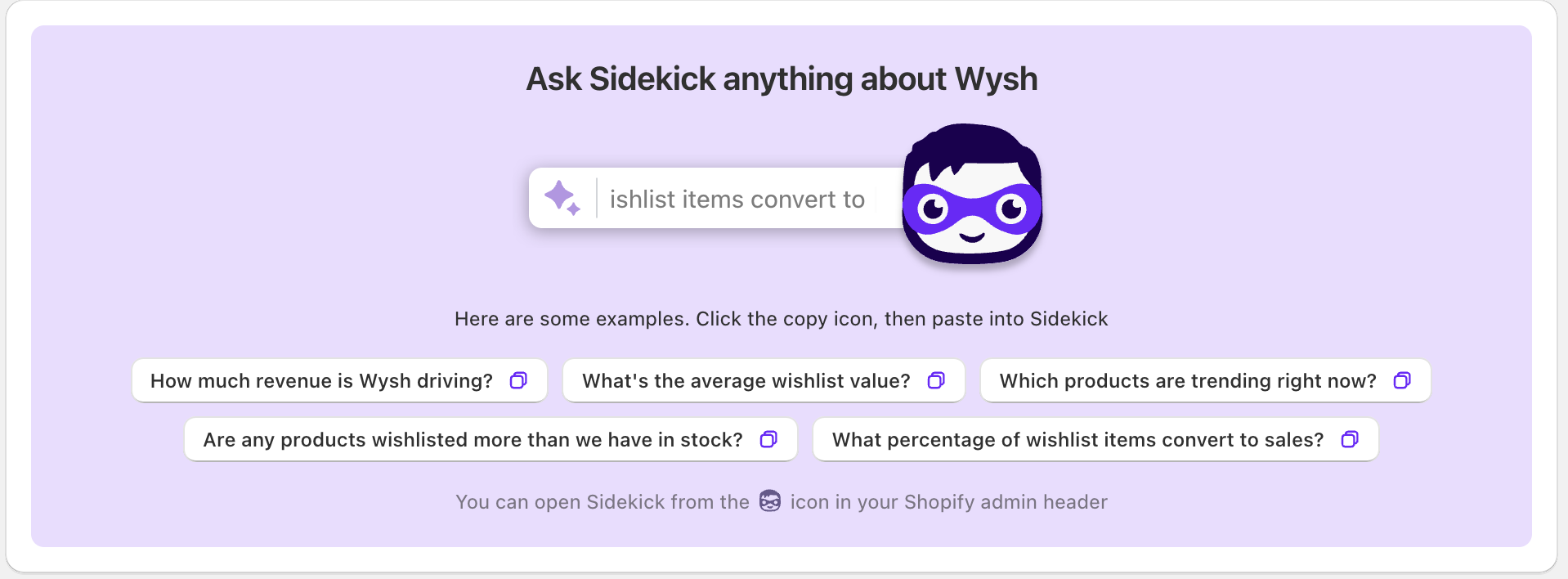
Where to find it
In the Wysh Dashboard, you will see a block titled Ask Sidekick anything about Wysh. This block shows example questions you can use right away.
To open Sidekick, click the small Sidekick icon in the Shopify admin header bar, next to the alerts or notification bell.
How the dashboard block works
Each suggestion in the Ask Sidekick anything about Wysh block includes a copy icon.
Clicking a suggestion copies that question to your clipboard
Wysh then prompts you to open Sidekick
Paste the copied question into Sidekick to run it
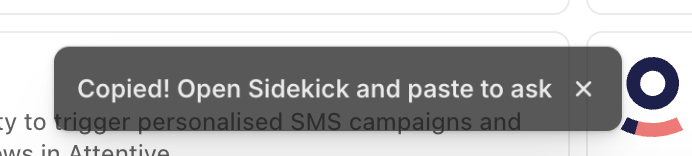
If you do not want to type your own question from scratch, start with one of the suggestions in the dashboard block, then edit the wording in Sidekick before sending it.
How to use Sidekick with Wysh
In Wysh, go to Dashboard.
Use one of the suggestions in the Ask Sidekick anything about Wysh block, or prepare your own question based on the examples below.
Click the Sidekick icon in the Shopify admin header.
Paste the question into Sidekick and send it. Sidekick will return results using your Wysh data.
What you can ask
Wishlist lookup
Use Sidekick when you want to find a specific wishlist or understand what a customer has saved. For example:
Find wishlists for customer [email protected]Show me wishlist #42What products are on that wishlist?Show me all wishlists for customer 12345
This is especially useful if you already use the Wishlists page to review saved items and want a faster way to find the right list.
Wysh supports both customer wishlists and guest wishlists. Guest wishlists will not include a customer name or email address.
Performance and analytics
Use Sidekick to ask the same kinds of questions you might normally investigate through the Wysh Dashboard, including metrics related to Wishlist Revenue, Top Wishlisted Products, and the Wishlist activity feed. For example:
How much revenue is Wysh driving?Which products are trending right now?What percentage of wishlist items convert to sales?How is Product X performing on wishlists?How does wishlist revenue compare between online and POS?What's the latest wishlist activity?
Inventory and demand
Use Sidekick to spot demand signals and possible stock issues. For example:
Are any products wishlisted more than we have in stock?Who's waiting for the Blue / Large variant?
These questions can help you identify strong interest before a sale happens, especially for products that appear often in wishlist activity.
Time periods you can use
For analytics questions, you can ask about a specific timeframe. Supported time periods include:
Last 7 days
Last 30 days
Last 60 days
Last 90 days
Last 6 months
Last 12 months
All time
If you do not mention a timeframe, Wysh uses the last 30 days by default.
To get more useful answers, include the timeframe in your question, such as How much revenue is Wysh driving in the last 90 days? or Which products are trending right now in the last 7 days?
What results include
Revenue figures are shown in your store’s currency
Product results include links to the relevant Shopify admin product pages
Customer results include links to the relevant Shopify admin customer pages
Results can include data from both the online storefront and Shopify POS
Wysh tracks wishlist activity across both your online store and Shopify POS, so Sidekick answers can reflect both channels where relevant.
First-time permission prompt
If your store has not used Sidekick to query Wysh before, Sidekick will ask for permission before it can access Wysh data.
This is expected. You can choose any of the available permission options, including:
Allow once
Allow and do not ask again
Do not allow
You only need to grant access before Sidekick can use Wysh data for the first time.
Best practices
Use specific product names, customer emails, or wishlist numbers when possible
Add a timeframe to analytics questions for clearer reporting
Ask follow-up questions like
What products are on that wishlist?after opening a specific listUse Sidekick for quick answers, then open the Dashboard or Wishlists page in Wysh when you want to review more detail manually
Example questions to copy
Find wishlists for customer [email protected]Show me all wishlists for customer 12345Show me wishlist #42What products are on that wishlist?
How much revenue is Wysh driving in the last 30 days?What percentage of wishlist items convert to sales in the last 90 days?How does wishlist revenue compare between online and POS in the last 12 months?
Which products are trending right now?How is Product X performing on wishlists in the last 60 days?Are any products wishlisted more than we have in stock?Who's waiting for the Blue / Large variant?
What's the latest wishlist activity?What has happened in wishlists in the last 7 days?