
Manage multiple wishlists
Manage saved lists in Wysh
Wysh lets customers keep more than one wishlist so they can organise saved products into separate lists.
From the wishlist page, customers can manage an existing list using the three-dot menu shown next to that wishlist.
Use the menu next to a specific wishlist when you want to change that list without affecting the others.
What you can do from the three-dot menu
Rename to update the list name
Duplicate to create a copy of an existing wishlist
Delete to remove a wishlist you no longer need
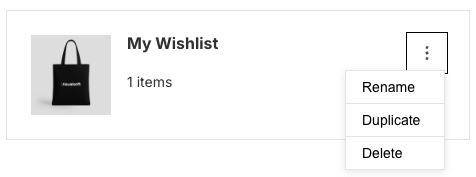
Rename, duplicate, or delete a wishlist
Go to My Wishlist or My Lists, depending on how many wishlists you already have.
Locate the specific wishlist you want to change.
Click the three-dot menu next to that wishlist.
Select Rename, Duplicate, or Delete from the menu.
When to use each option
Rename
Use Rename when the wishlist still contains the right products, but the name no longer fits. For example, a customer might change a list name from “Gift Ideas” to “Birthday Gifts”.
Duplicate
Use Duplicate when you want to make a copy of an existing wishlist without rebuilding it from scratch. This is helpful if a customer wants to reuse a list for a similar occasion or create a variation of an existing set of saved products.
Delete
Use Delete when a wishlist is no longer needed and can be removed from the account.
Deleting a wishlist removes that list. Customers should make sure they no longer need it before choosing Delete.
Helpful notes
If a customer wants to keep the same products but organise them differently, Duplicate is usually a better choice than deleting and starting over.
Related wishlist tasks
Learn how customers save items from product pages using the wishlist icon next to Add to cart and Buy it now.
See how customers create extra lists with Create New List and switch from My Wishlist to My Lists.