
How to change the colour of the buttons on the wishlist page
Change wishlist page button colours
You can change the colours used for the Add to cart and Create New List buttons on Wysh wishlist pages from your Shopify theme editor.
These settings are found in the Wysh Wishlist app embed. If your store was previously styled through the Wysh setup wizard, you must first enable Override Wizard Settings before the theme editor button colour settings will take effect.
Enabling Override Wizard Settings makes the theme editor settings take priority over styling that was previously set in the Wysh installation wizard.
FAQ
In Shopify, open your store's theme editor and go to App embeds. Then open the Wysh Wishlist settings.

Look for Override Wizard Settings. If it is not already enabled, turn it on.
This allows the theme editor settings to take precedence over any styling previously set in the Wysh installation wizard.
Scroll down to the Wishlist pages section in the Wysh settings.
Find the toggle labelled Override action button colours and enable it.
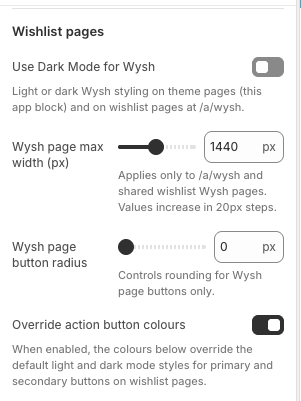
After enabling Override action button colours, additional colour fields appear for the wishlist page buttons.
Use these settings to choose the colours for the primary and secondary action buttons, including their background, text, border, and hover states.
As you update the colours, you can see the changes in real time in the theme editor preview.
When you are happy with the result, click Save in the theme editor.
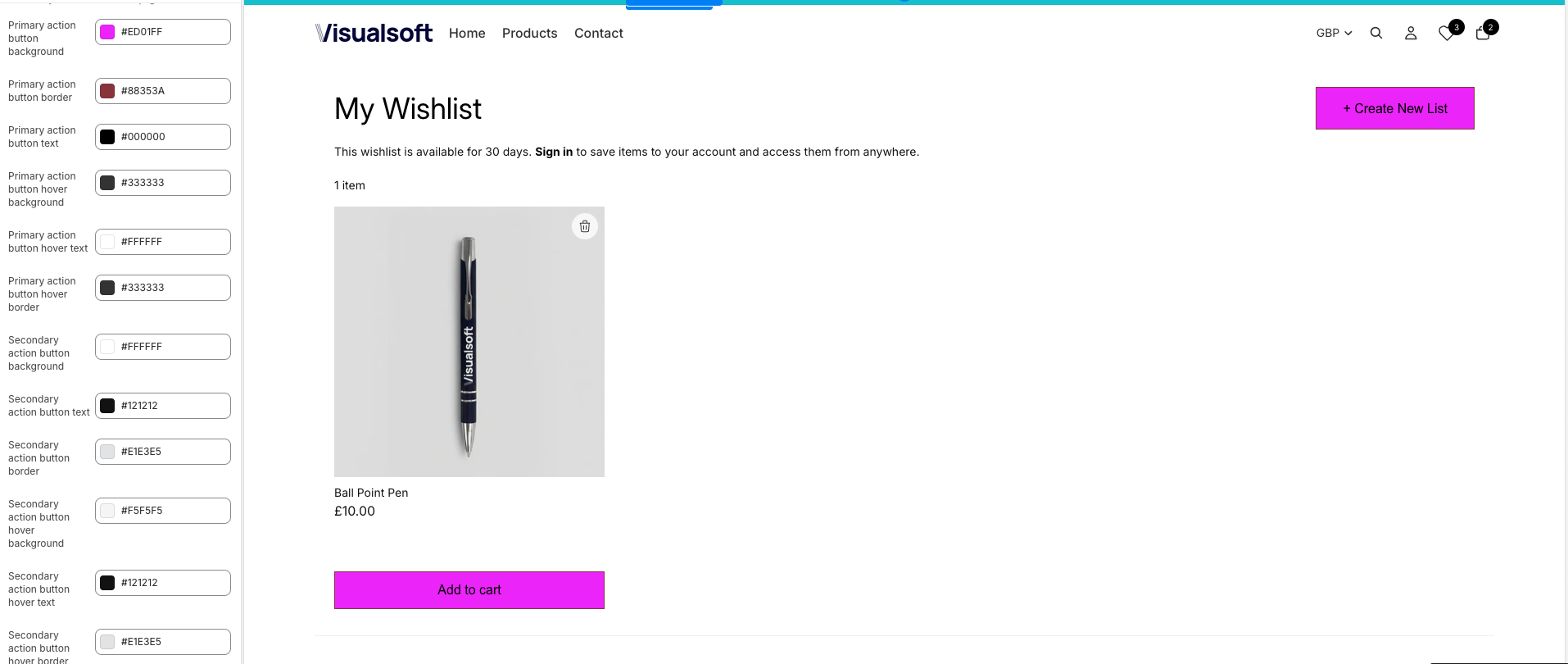
These settings affect the action buttons shown on Wysh wishlist pages, including Add to cart and Create New List.
Wysh uses separate primary and secondary button colour settings so you can style different button types on the wishlist page.
The most common reason is that Override Wizard Settings is still turned off.
If you used custom styling during the Wysh setup wizard, those wizard settings can override theme editor styling until Override Wizard Settings is enabled in the Wysh Wishlist app embed.
This matches how Wysh handles app-level and theme-level styling: wizard settings win by default, and theme editor settings win only after Override Wizard Settings is enabled.
Override action button colours enables manual colour selection for wishlist page action buttons.
Once turned on, you can define the colours used for primary and secondary buttons instead of relying on the default wishlist page button styling.
Yes. The Shopify theme editor shows your changes in real time, so you can review the updated Add to cart and Create New List button colours before saving.
If you want to test design changes first, make them on a draft theme before applying them to your live storefront.
Quick checklist
- Open App embeds in the Shopify theme editor
- Open Wysh Wishlist
- Enable Override Wizard Settings if needed
- Go to Wishlist pages
- Enable Override action button colours
- Choose your primary and secondary button colours
- Review the live preview and Save