
Why are my theme block settings not showing?
Why your styling changes are not showing
If you change styling in the Wysh theme block settings and the changes do not appear on your storefront, the most common cause is that styling from the setup wizard is still taking priority.
During setup, Wysh can save custom display and styling options in the wizard if you opt for a customised set-up during installation. When those wizard settings are active, they can override any styling you have applied in the theme editor.
If your storefront does not match the styling set in the theme block, check whether the wizard configuration is still controlling the app.
How Wysh decides which settings to use
Wizard settings set during setup can take precedence over theme block styling.
Theme block settings will only take priority again when Override Wizard Settings is enabled in the theme editor.
Fix: enable Override Wizard Settings
In Shopify, open your theme editor and locate the Wysh Wishlist block.
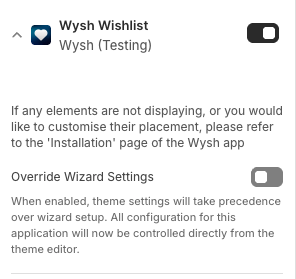
In the Wysh block settings, look for the toggle labelled Override Wizard Settings.
Enable Override Wizard Settings. This makes the styling and settings in the theme editor take precedence over the wizard setup.
After enabling the setting, recheck your theme block styling changes. Your theme editor settings should now control the appearance again.
Where to check related setup settings
If you want to review the original configuration that may be overriding your theme styling, refer to the Installation page in the Wysh app.
The text in the theme editor explains this directly: when Override Wizard Settings is enabled, theme settings take precedence over wizard setup.
Quick answer
If styling set in your Wysh theme block is being ignored, it is usually because the setup wizard settings are overriding it. Turn on Override Wizard Settings in the Wysh Wishlist block to make your theme editor styling apply again.